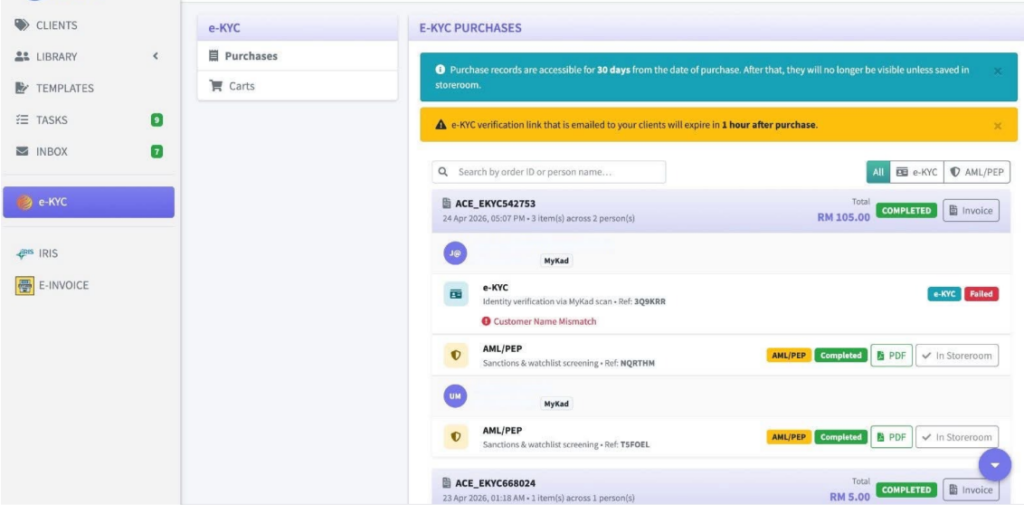
Before you start purchasing, please ensure that the details registered in ACE are exactly the same as in the individual’s Mykad or Passport. Any mismatch in the name or Mykad/Passport number will return a failed status and you will need to purchase another verification process again.
- Step 1 : Login as Cosec or Assistant. Only these users are able to purchase e-KYC.
- If you see the e-KYC menu on the left, then the feature is available for you.

- Step 2 : Click on Library on the Sidebar.
- Step 3 : Click on People and Choose the Person you want to purchase e-KYC for.
- Step 4 : Click the service you would like to purchase by selecting either “Request e-KYC” or “Request AML/PEP”. You can choose either one or both for the same person in one transaction. When the buttons are clicked, the items are then added to the e-KYC cart.

- Step 5 : Click on e-KYC on the sidebar to view your cart. Any request e-KYC or AML/PEP on any individuals from your library will be listed here.
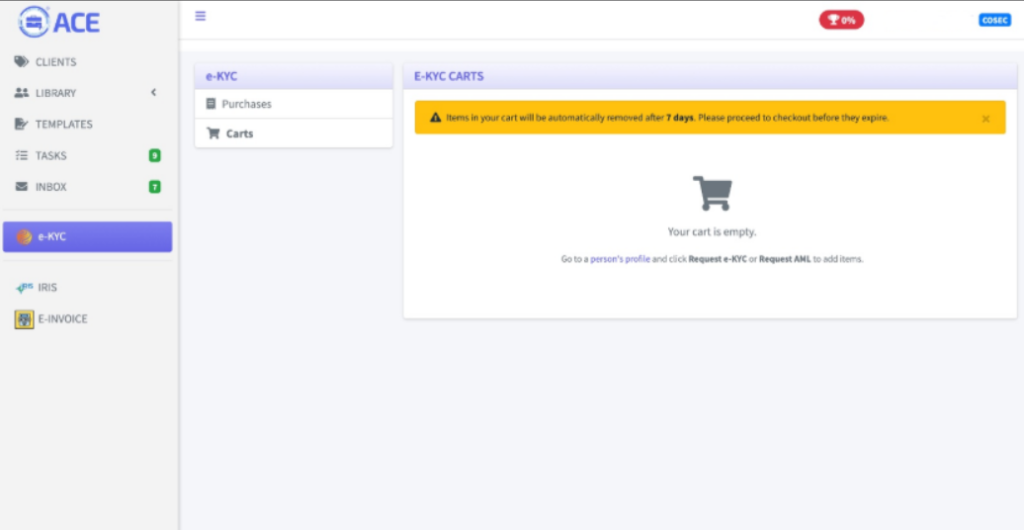
- Step 6: You can remove any request by clicking on the trash icon. You can always add them again on your next session. Once you are ready to checkout. Click on Proceed to go through the payment process.

- Step 7 : Once payment is completed, the system will do the following in the back-end, depending on which service you have purchased.
- e-KYC: An email is sent to the individual using the registered email in the system. The email contains the link that they can use to verify their MyKad or Passport. The link will expire in 1 hour. If it has expired, go back to your e-KYC purchases, look for the item and click on “Resend”. It is advisable that you communicate with the individual to stand-by and check their email.
The user will need to access the email using a phone so that the camera can be utilised. If there is no email client on the phone, you can copy the link from the email accessed on a laptop and send it to the phone via Whatsapp Web, and continue by clicking on the link. - AML/PEP: The system will check and when the result are ready, the PDF button will appear under the items on the Purchases page. The time for the report varies from 5 minutes to 1 hour. You can always refer back on the Purchases page.
- e-KYC: An email is sent to the individual using the registered email in the system. The email contains the link that they can use to verify their MyKad or Passport. The link will expire in 1 hour. If it has expired, go back to your e-KYC purchases, look for the item and click on “Resend”. It is advisable that you communicate with the individual to stand-by and check their email.
- Step 8: When the reports are ready, the button labelled “PDF” will appear under the purchased items. Please take note that the PDF reports are accessible for 30 days from the date of purchase. When the 30 days is up, the files will be removed from the purchases page.
Good news however, you can move them to the storeroom if you want to keep them. Just click on the button labelled “Storeroom”. The file will be stored in the individual’s related company storeroom.