This page is meant to help the Cosec whose Firm has purchased the add-on module which allows for visitors to enter new company incorporation details.
When a submission is received, it will be received by the Firm, which in turn will assign the incorporation task to the Cosec.
Cosec will need to do the following to complete the incorporation task.
- Login to ACE as Cosec.
- Go to the Task section.
- On the task listing, type in the string “incorporation” to see the tasks. All new incorporation tasks are given the task title “Incorporated Client Acceptance”. You can further check the deadline and status to see the fresh tasks.
- Click on the incorporation task.
- The task details will be shown with more information. To proceed with the incorporation, click on “ACCEPT INCORPORATION” button.
- The “SAVE TASK” is to save any uploaded files, while “MARK AS COMPLETE” will change the status of this task to COMPLETED.
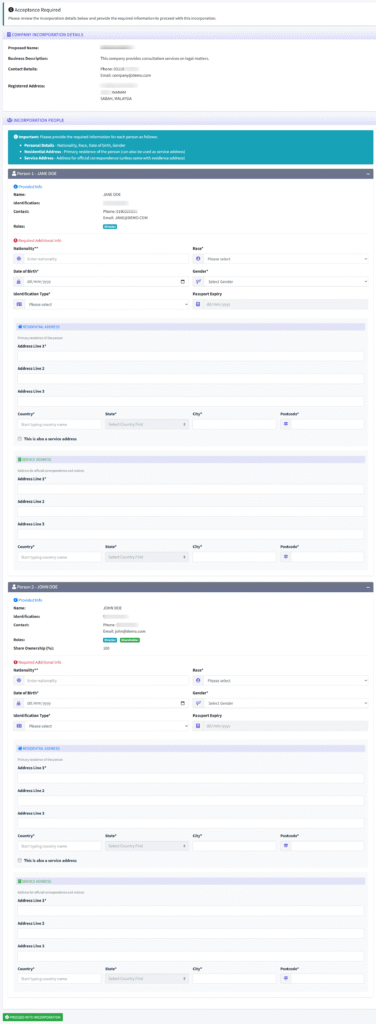
- After clicking on the acceptance button and agreeing to a popup box, you will be taken to a more detailed page about the incorporation details and required additional information (Image A).
- ACE requires more details and so, this is where the Cosec need to enter the required details such as Nationality, Race, Date of Birth for each individual that will be added together with the Service Address.
- Once you have entered all of the information, click on the button “PROCESS WITH INCORPORATION” to add the information to the database.
- Do take note that if the system detects that the individual are using the same Identification Number, the system will immediately use the information already existing in the ACE database.
- After agreeing to the popup box (by clicking ACCEPT), the client is now saved and available in the system.