This section is meant for our Firm users who has purchased the “Company Incorporation” package from us. This section is to guide you on receiving and assigning the task of company incorporation to your Cosec.
Submission Sent
When a submission is submitted, an email will be sent to your registered email address as notification. Also in the email are all the details submitted.
The information are also saved in ACE for the ease of assigning the actual task to your Cosec.
Please follow these guide;
- Login to ACE to your FIRM account and then go to Clients page.
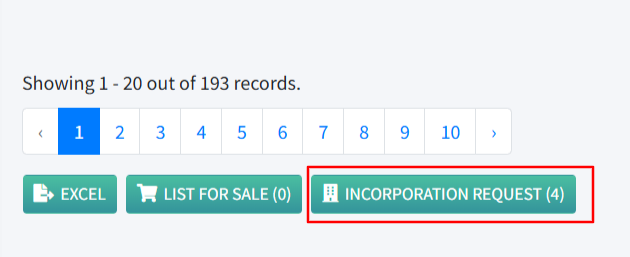
- Scroll to the bottom of your client listing and look for the button “INCORPORATION REQUESTS”. The number inside the brackets shows the number of Incorporation Requests (refer to Image A). Click on the button.
- On the incorporation request listing page, you can see all incoming submissions with the proposed names, person-in-charge and also transferred date. Click on any name to proceed.
- On the main company incorporation details page, the full submission information is displayed. Go through the information and if everything seems right, you can click on the button ASSIGN below. For incorporation request that has already been transferred, you will see a button labelled “TRASFERRED” instead.
- When the button ASSIGN is clicked, a selection box appears allowing you to select your COSEC (Image B).
- Choose your Cosec and click NEXT.
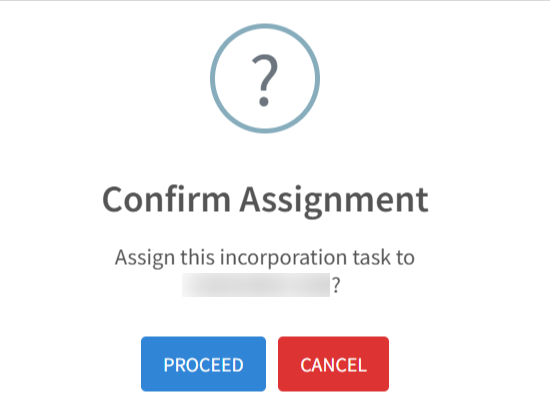
- A confirmation box now appears (Image C), click PROCEED.
- The system will now create a task for the selected Cosec and also create a notification. A confirmation box will appear informing you that this incorporation task has been assigned.
- Now the ball is in Cosec’s court to incorporate the company into ACE.