
Add A New Category
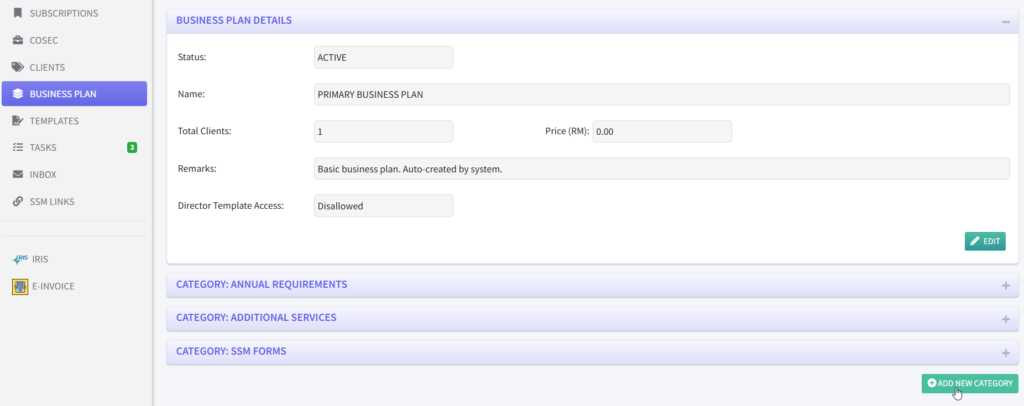
1. On the Business Plan List page, click on a Business Plan to see the details.

2. At the lower right of the screen, click on the button “+ ADD NEW CATEGORY”.
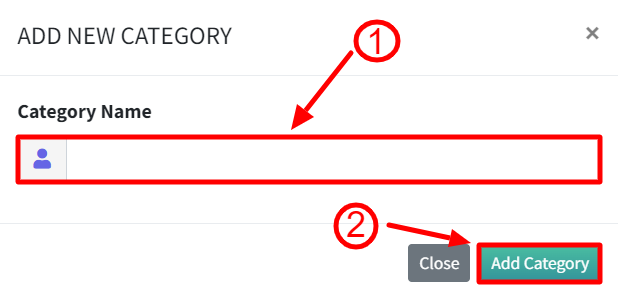
3. In the popup box, enter the desired category name and click “Add Category”.
4. The Business Plan Details page will refresh with the new category displayed at the bottom. Within the newly category box, you can see 3 more additional buttons;
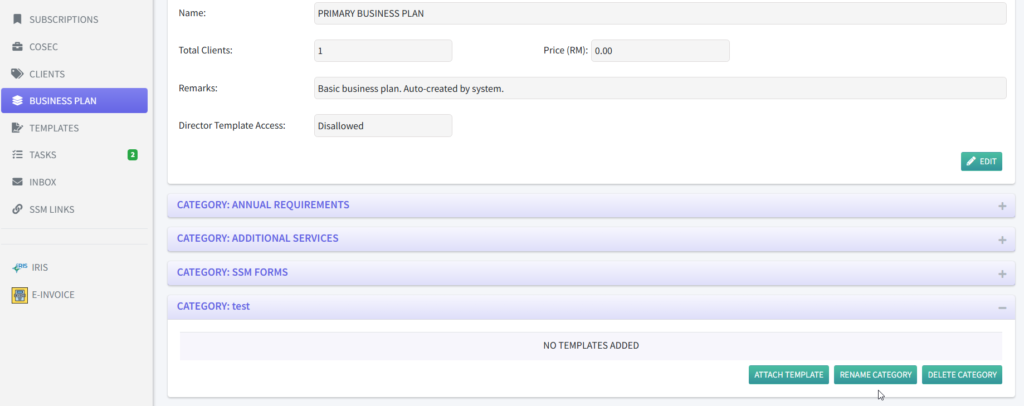
ATTACH TEMPLATE: Select 1 or more templates to be placed in this category.
RENAME CATEGORY: Rename this category
DELETE CATEGORY: Remove this category.
Renaming A Category
1. On the Business Plan List page, click on Business Plan to go to the Business Plan Package Details.

Scroll down to a category.
2. Click on “RENAME CATEGORY” button.

3. On the resulting popup box, change the name of the category.
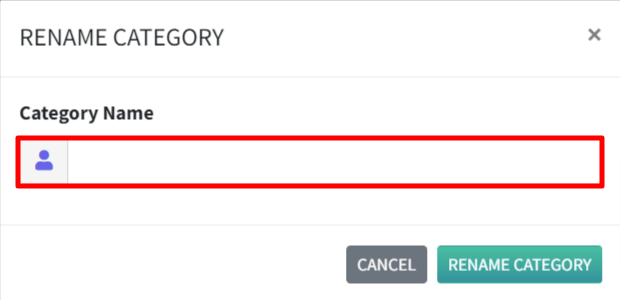
4. Click on “RENAME CATEGORY”.

The Business Plan Details page will refresh with the updated category name.
Deleting A Category
1. On the Business Plan List page, click on a membership to go to the Business Plan Package Details.
2. On the Business Plan List page, click on a Business Plan to see the details.
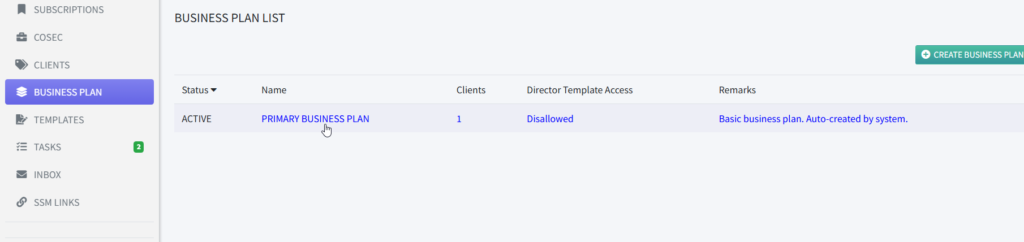
Scroll down to a category.
3. Click on “DELETE CATEGORY” button.
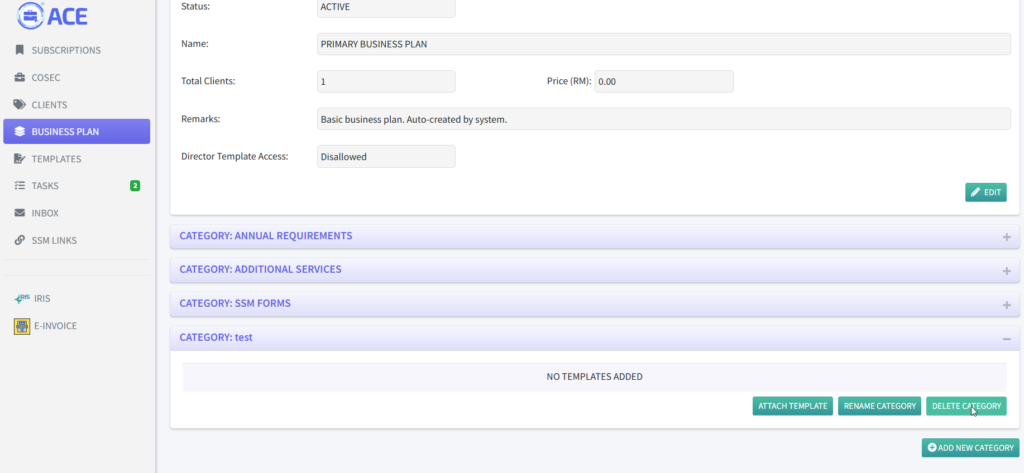
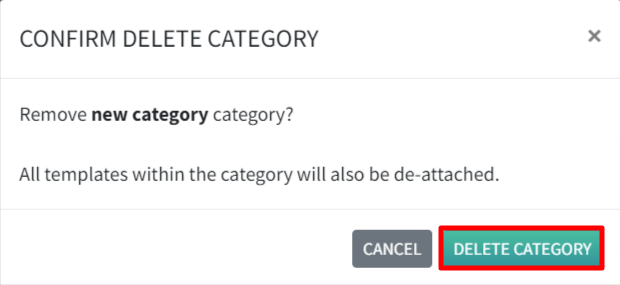
A confirmation popup box appears. It is to inform you that when the category is removed, the templates are not deleted. They are still available to be attached into another category.
4. Click on “DELETE CATEGORY” to continue deleting.
The Business Plan Details page will refresh without the deleted category.