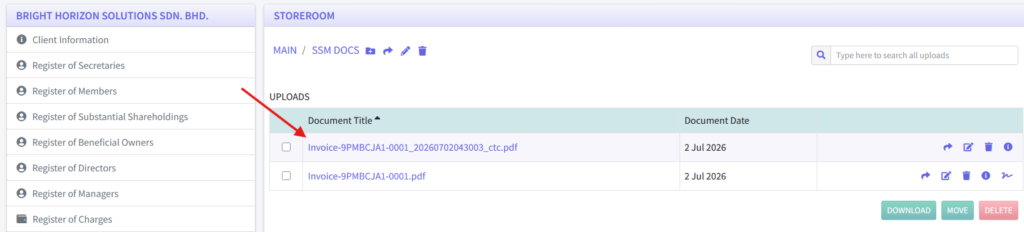
The Certified True Copy (CTC) feature allows you to certify PDF documents by applying a Certified True Copy stamp and an authorized signature directly within the system. You can choose how the CTC stamp is positioned on the document, making it easy to prepare certified copies without modifying the original file.
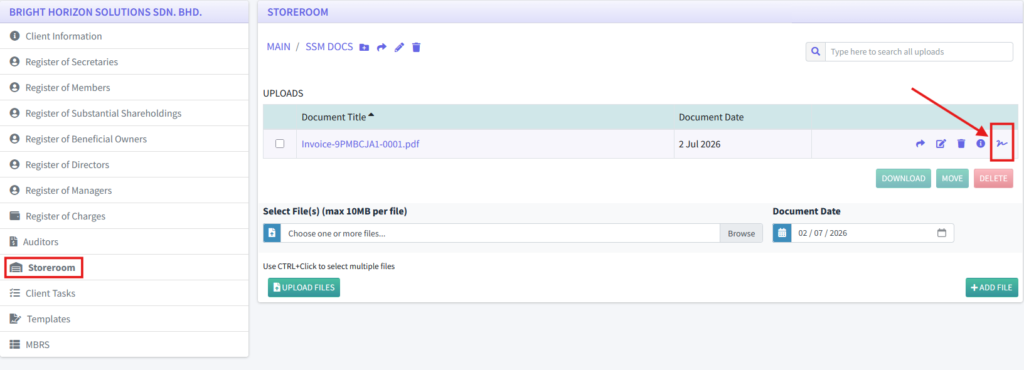
- Log in as a COSEC user and navigate to the Client Listing page. Select the client for whom you want to use the Certified True Copy (CTC) feature. From the client’s dashboard, open the Storeroom menu and locate the PDF file you wish to certify. Click the CTC icon displayed on the right side of the PDF file to begin the certification process.
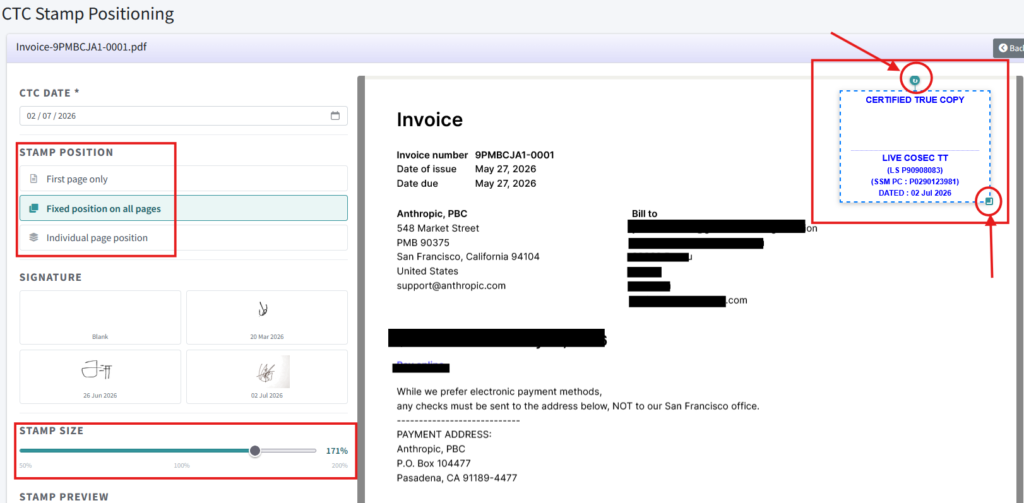
2. After clicking the CTC icon, you will be taken to the CTC Stamp Positioning page. Here, you can choose how the CTC stamp will be applied by selecting First Page Only, Fixed Position on All Pages, or Individual Page Position. You can resize and rotate the stamp by dragging the circular handles around it, or adjust its dimensions using the Stamp Size section. An example is shown below.
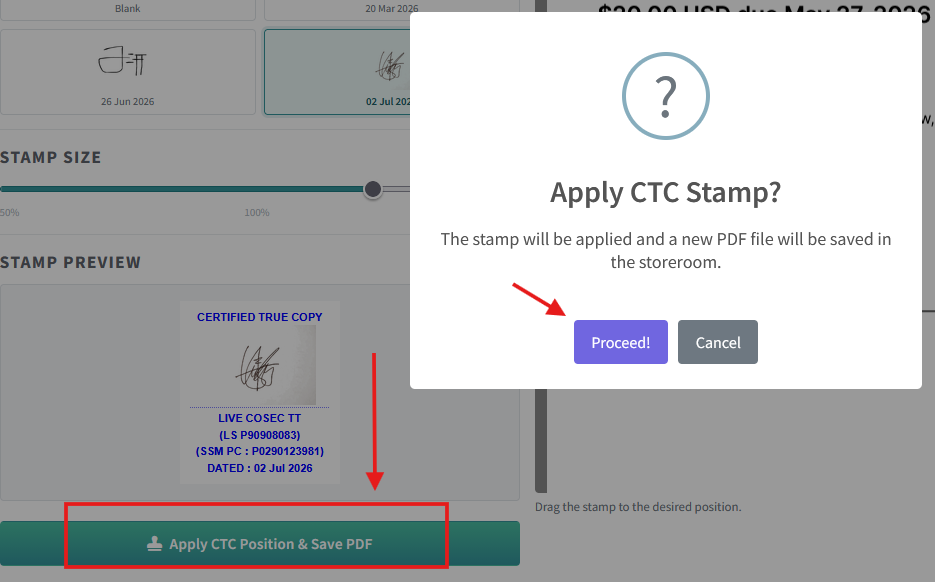
3. Select the signature you have saved in your COSEC Profile (see Signature for instructions on adding a signature). After reviewing the CTC stamp placement, click Apply CTC Position & Save PDF to continue. Then, click Proceed to save the new PDF with the CTC stamp applied.
4. A new PDF file with the applied CTC stamp will be generated and saved in the same folder as the original PDF. The CTC stamp will appear exactly as you positioned and configured it during the CTC process.