
What it does
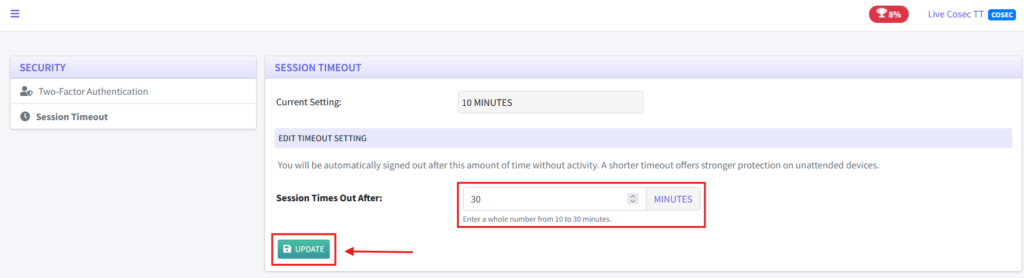
For security purposes, you will be automatically signed out after a period of inactivity to help protect your account when you step away. You can adjust the timeout period between 10 and 30 minutes. The default inactivity timeout is 10 minutes.
Setting it
- From your dashboard:
- Click SECURITY under your profile menu in the top-right corner.
- You will be redirected to the SESSION TIMEOUT page.
- From this page, you can view and adjust your session timeout settings.

2. You can set your preferred session timeout between 10 and 30 minutes, based on your preference.
After selecting your desired timeout period, click UPDATE to save your changes. Your new session timeout will take effect immediately.
How it behaves
- About 30 seconds before you’re signed out, a warning pops up with a live countdown.
- Click “Stay Signed In” to continue working, or “Log Out” to end your session right away.
- If you don’t respond, you’re automatically logged out and returned to the login page, which shows a “session expired” notice.
- If you have the system open in multiple tabs, activity in any tab keeps all tabs signed in, and a timeout/logout in one tab signs you out everywhere.