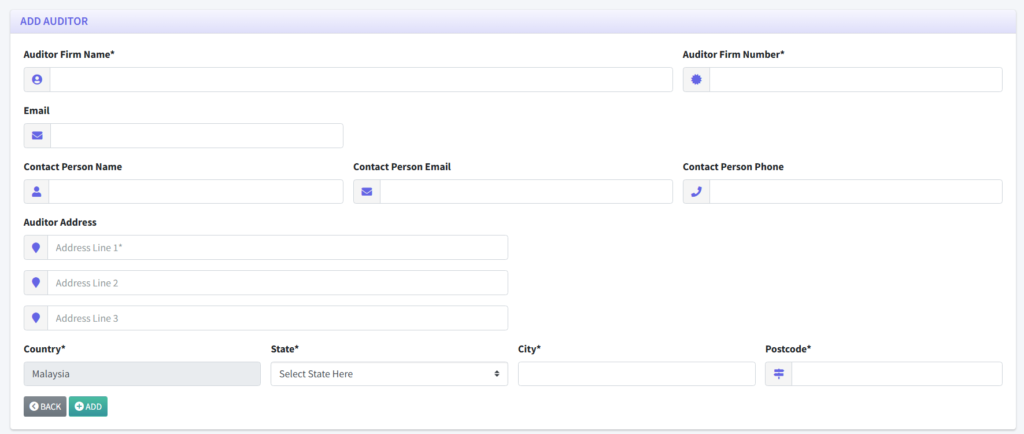
1. On the client menu, click on “Auditors”.
2. Click on the “ADD” button to appoint an auditor (or select an existing auditor from the list to edit).
3. When Appointing:
The “SELECT AUDITOR” screen will appear. You can select an auditor from your library, or click “NEW” to add one.
If creating a new one, fill up the ADD AUDITOR form: Auditor Firm Name, Firm Number, Email, Contact Person, and Address limits.Then click “ADD”.
Proceed to set their Appointed date.
4. When Setting Cessation:
Select an already appointed auditor from the list.
Update the record to include their Cessation date if they have resigned or been removed.
5. Save or update the record. The APPOINTED AUDITORS list will immediately reflect the new Appointed or Cessation dates.