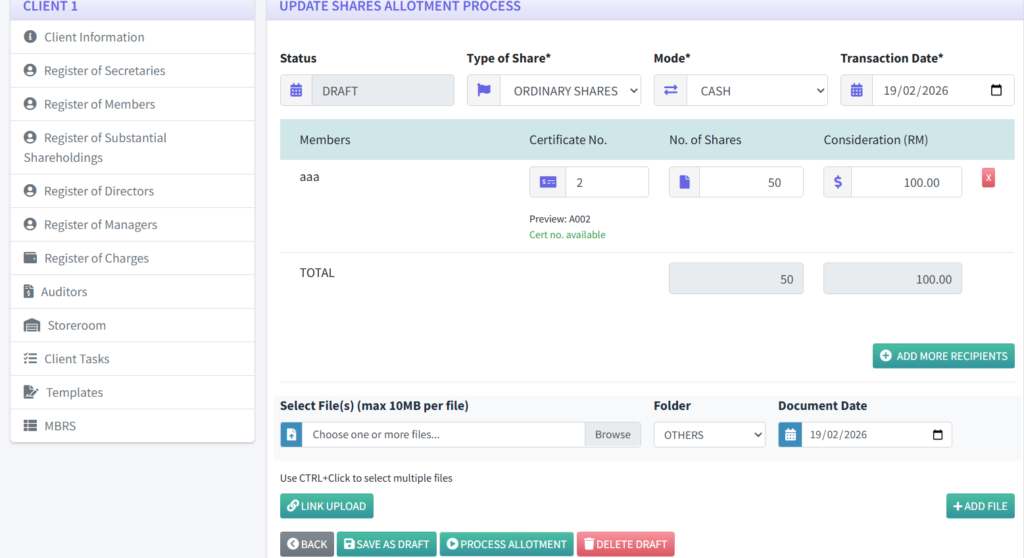
Shares transactions section is where Cosec can manage Shares Allotment. Follow along to create share allotment transactions.
- On the client menu, click on Register of Members.
- Click on “Shares Transactions”.
- A list of transactions will be listed if any, along with the status. Transaction with Completed status cannot be edit. You are allowed to edit only those with Draft status.
- Click on “Create Allotment Process” button.
- On the form, select “Type of Share” from the drop-down.
- Select your “Mode” of currency from the drop-down.
- Set the transaction date from the date selection window.
- Click on the button “Select Recipients” and a popup window will appear with a list of all current Members.
- You can select one or more recipients by holding down the Ctrl key (or Command for Mac) and click on the names.
- After you have made the selection, click on “Click to Add”.
- The page will now list the selected members. Enter the values for Number of shares and Consideration for each member.
- You can continue to add more members by clicking on the button “Add More Recipients”.
- To remove a recipient, click on the X button.
- When the process is first created, it must be saved as Draft first. The save button will be enabled only when the form is properly filled.
- After this process is saved as Draft, then the section for document upload is shown. Cosec can upload related documents here. The button “Process Allotment” is also shown and enabled.
- When this allotment is processed, the status will be upgraded to Completed and the details cannot be changed. However as long as the status is Draft, the Cosec can come back and make changes to it.
- After allotment is processed, the selected recipients will have the allocated shares saved under their names. More details about the allotment can be viewed and explained in the next section.