
The main purpose of templates is to let you use one template across multiple clients. The instructions on this page will show you how to set it up and use it effectively.
1. Login as Cosec and Go to the Client Menu.
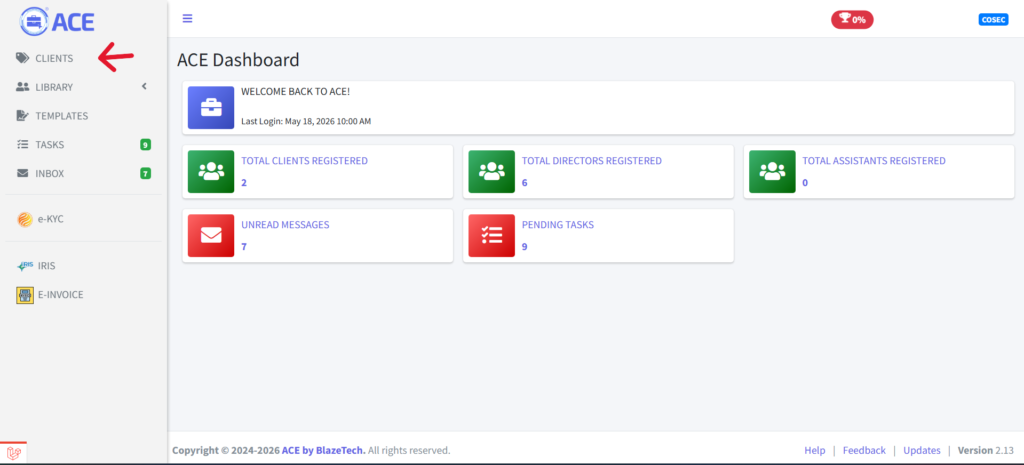
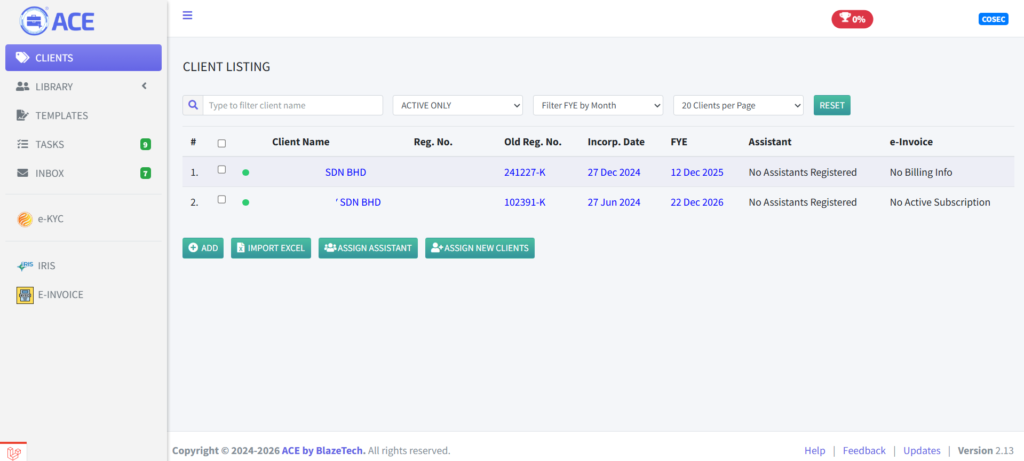
2. Click on a client.
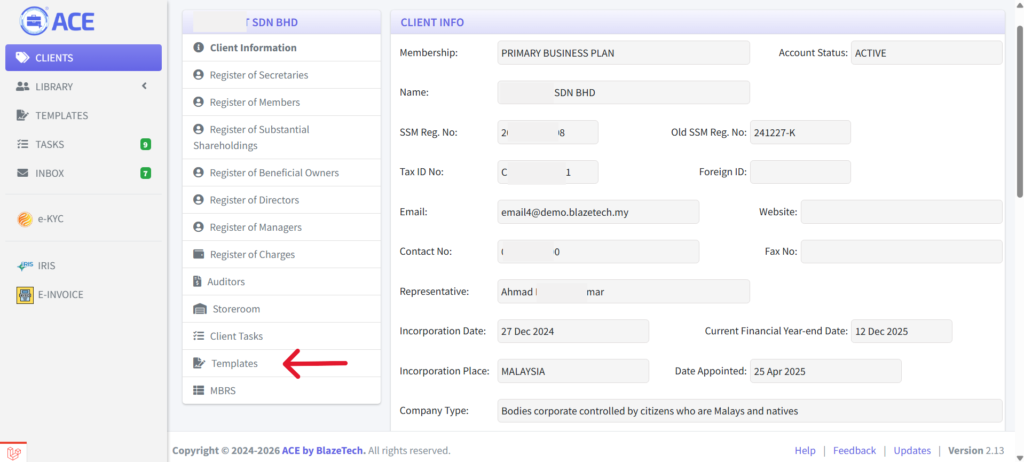
3. Click on Templates.
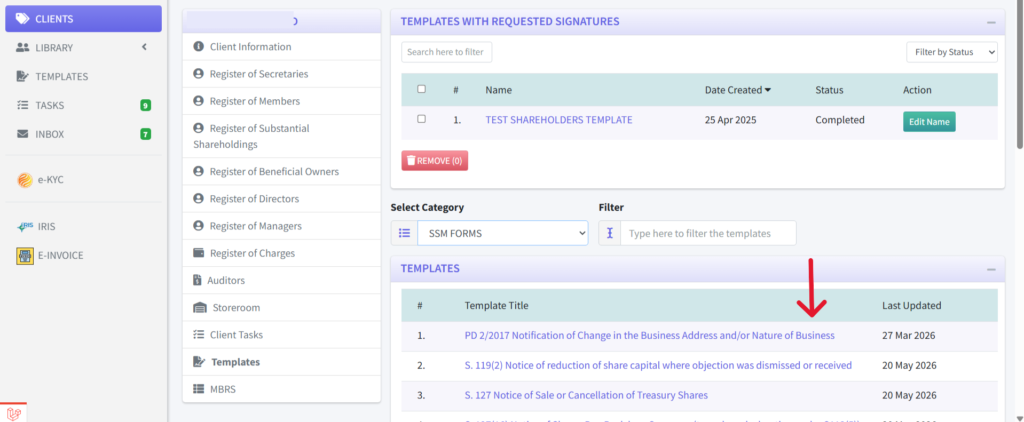
4. Select which template you would like to use.
5. Some tags used in the template require manual input. When this happens, the fields will appear on the left side. Enter the required information into the blank text fields provided.
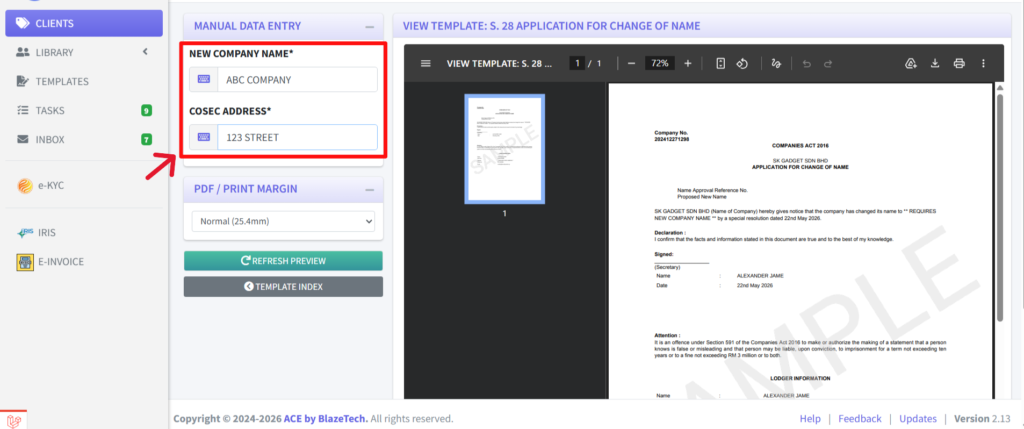
6. Click ‘REFRESH PREVIEW’ to update the template with the values you entered.

7. If the template is ready, you have several options to export and save it as a document. The built-in export options are available at the top-right corner (see below).
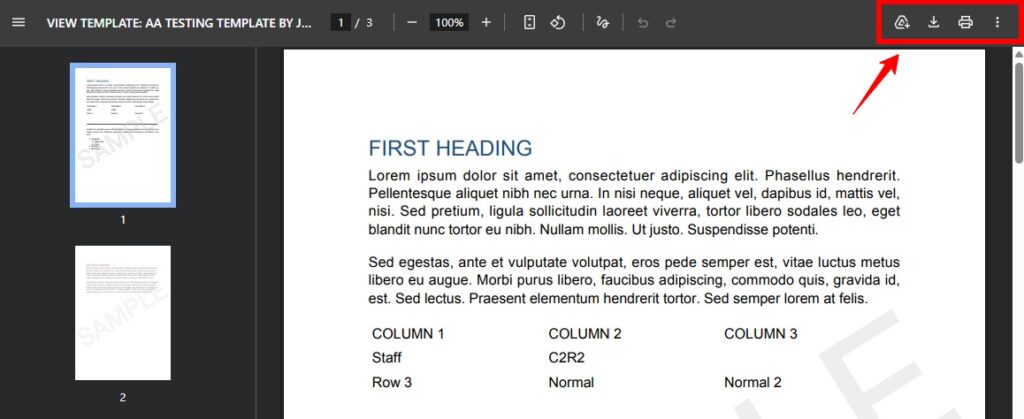
8. The 3 options available are;
- Google Drive – you can opt to save the PDF directly into your Google drive.
- Download – save the document in your computer.
- Print – send the document directly to the printer.
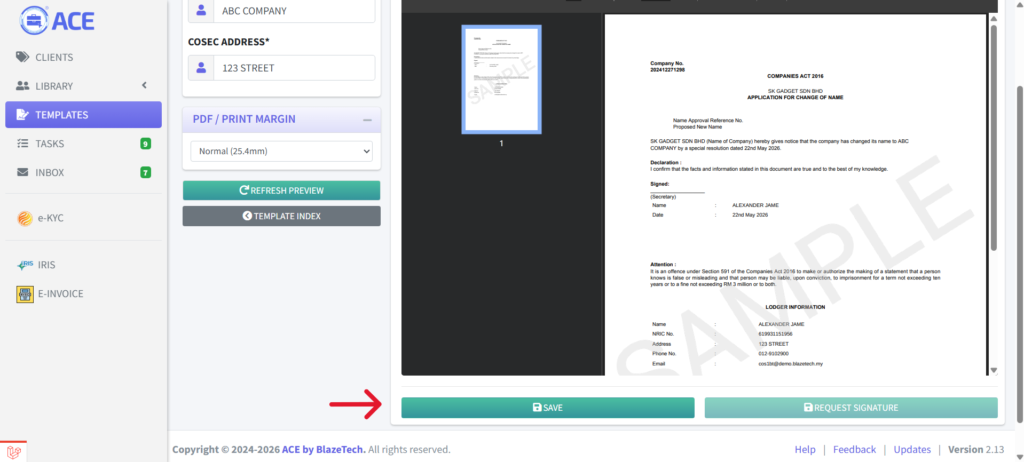
9. You can also keep it in ACE by saving it in the client’s storeroom. Click on the “Save” button.
10. In the pop-up window, you can optionally rename the file. Then select the destination folder and click ‘Save’. The file will then be accessible to both you and your assistant within the storeroom.
