
Cosec signature refers to the stored signature record linked to a company secretary profile, used for document signing and approval within the system.
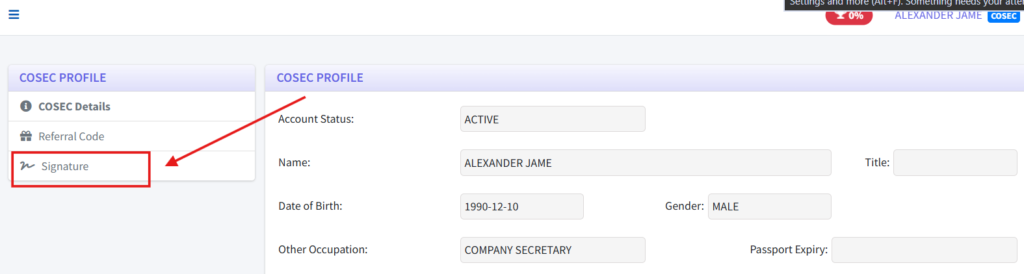
1. Login as Cosec and click on the COSEC PROFILE under your profile menu.

2. In the COSEC PROFILE page, you will see a Signature menu on the left side. Click on it.
3. On the COSEC Signature page, you can set up your signature using one of two methods: Create Signature Online or Upload Signature Image. If you would like to create your signature directly within the system, simply select the Create Signature Online option.

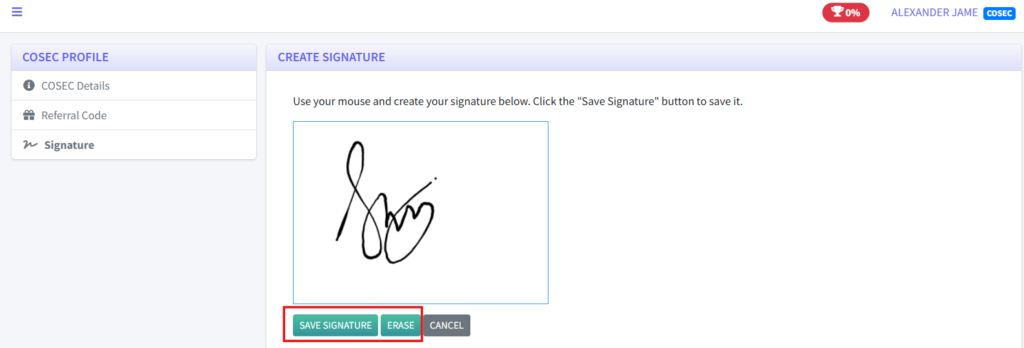
4. On the Create Signature Online page, draw your signature in the designated area. If you want to start over, click Erase to clear the signature and draw it again. Once you are satisfied with your signature, click Save Signature to save it. After saving, your signature will appear immediately on the COSEC Signature page, where you can still remove it if needed.
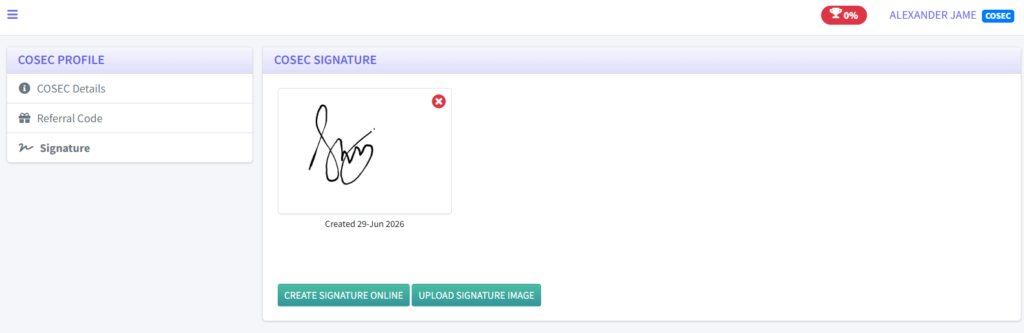
5. To upload a signature image, click Upload Signature Image and browse for the signature file on your computer. After selecting the image, you can use the Erase Background option to remove the background if your signature was written on paper. If your signature image already has a transparent background, you can skip this step.
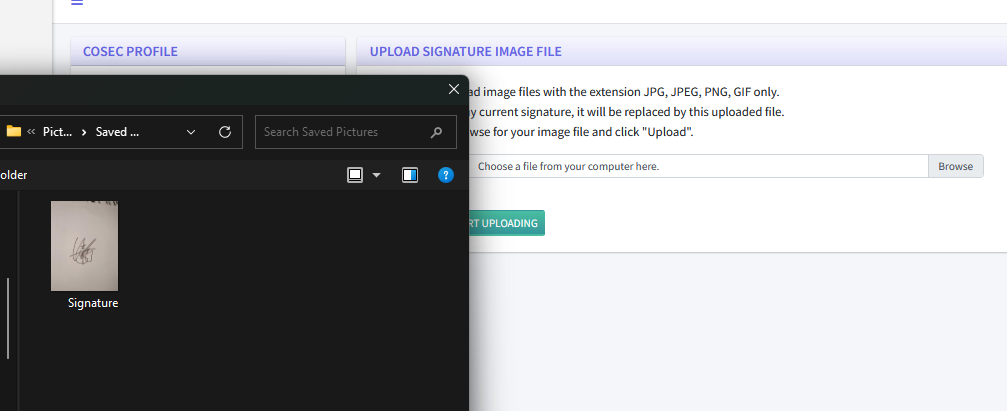

If your signature was written on paper, drag and reposition the image so that your signature is centered within the preview frame. Then, click Erase Background to remove the paper background. Once the background has been removed, upload your signature, and it will be displayed on your COSEC Signature page.